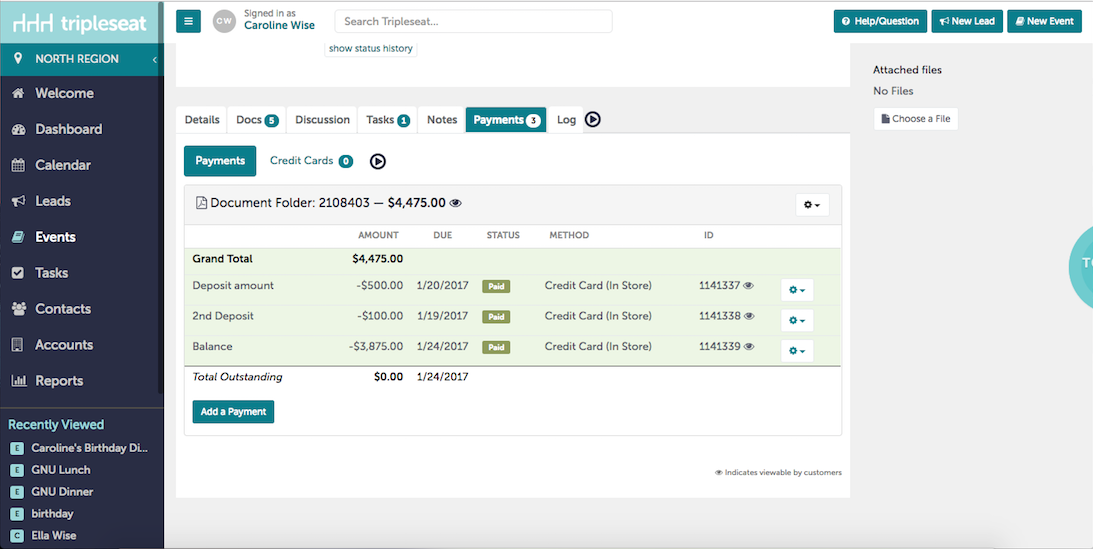
The Deposit and any payment custom fields are created automatically based on how your payment settings are configured for the document set. If you’d like to create new payment custom fields, refer to this article for setup instructions.
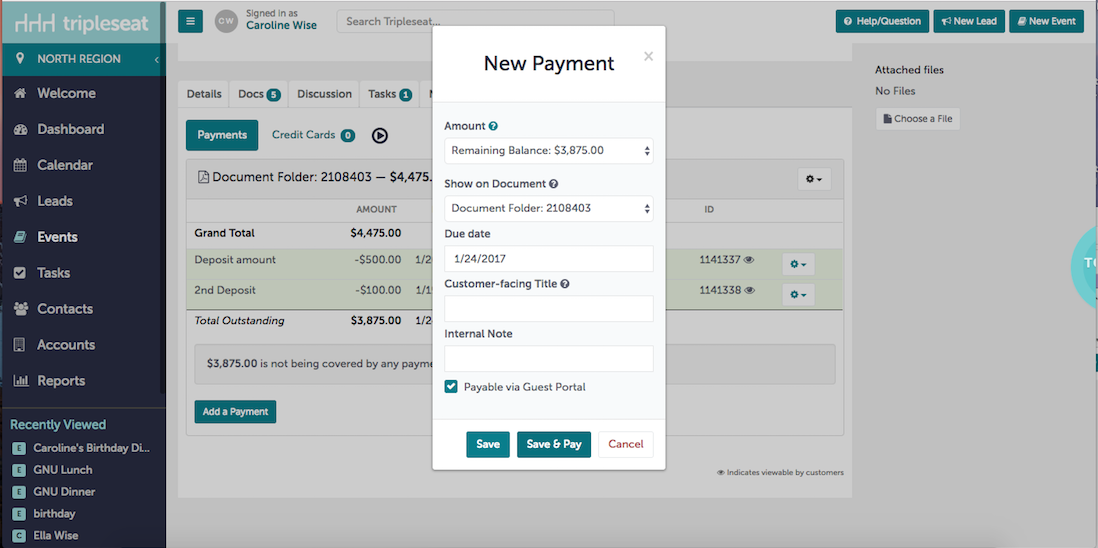
If you need additional payments for an event, you can add them on the fly in the Payments tab by clicking Add a Payment. Follow the steps to add the payment details and click Save.
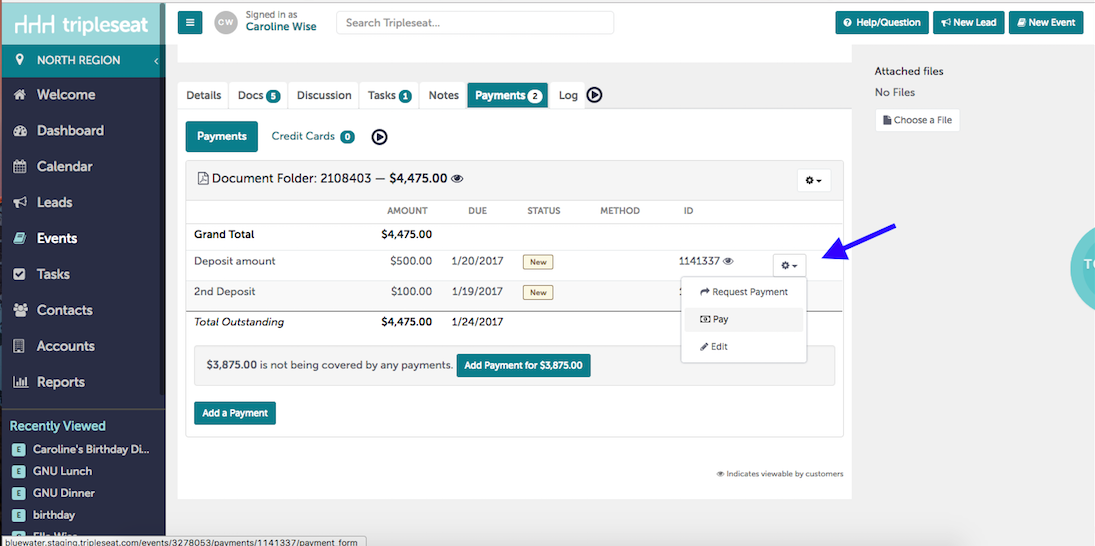
To mark a payment as Paid, hover over the gear on the right and select Pay. You can then choose the option in which your guest has paid you outside of Tripleseat. If you have a payment integration and there is a credit card or bank account on file, you can choose Credit Card or ACH to charge the guest directly.
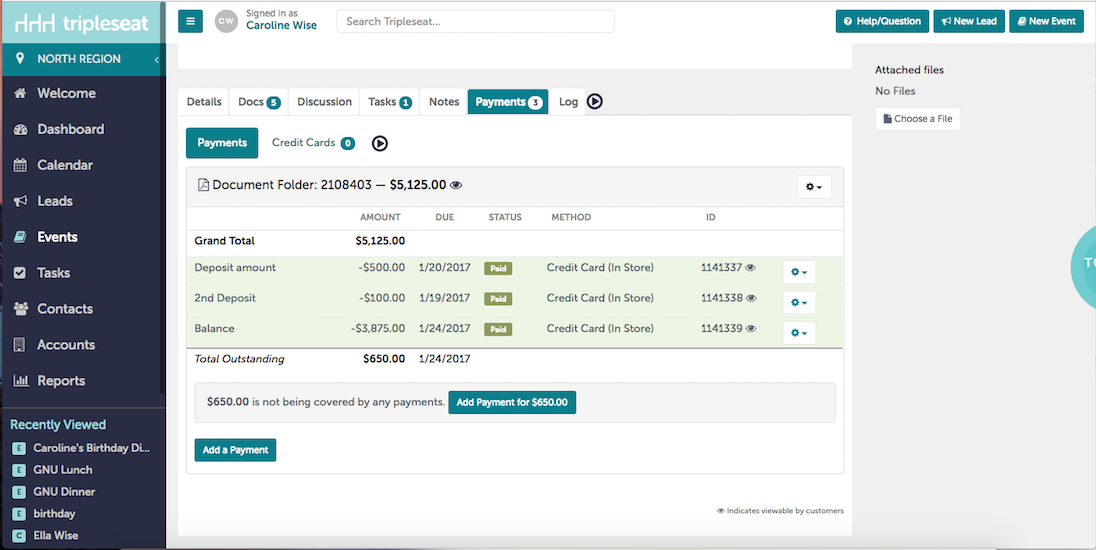
Once a payment is paid, the total outstanding will be automatically updated:
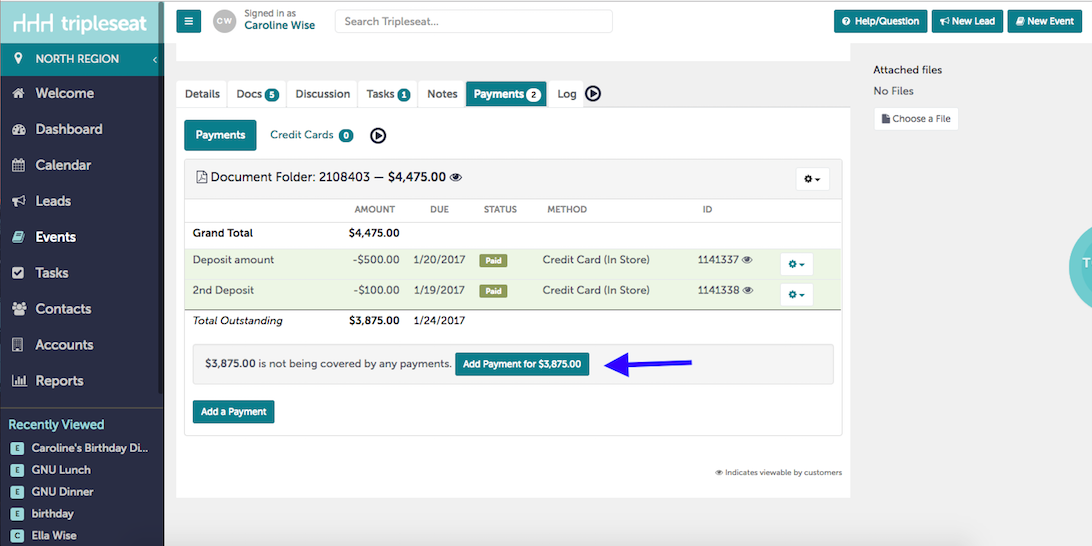
To pay the Remaining Balance, click Add Payment for $XXXX (this will be the total outstanding amount).
Now select Save & Pay or Save.
- Save & Pay will be used when you are ready to mark the payment as paid or charge the guest.
- Save is if you want to request the payment from your customer directly.
Once the remaining balance is paid, the event should have a zero outstanding balance, and you can close the event out.