
See below for details on SAML using Okta. This feature allows you to use Okta to manage different credentials. We have enabled IDP-Initiated Logins, so before following the steps below, log in to Tripleseat and click on Settings. Click on Preferences and then click on User Authentication. Scroll down and check off "Allow IDP Initiated Logins".
Please use the unique URLs created on the “User Authentication” tab in your account instead of the generic URLs listed below. Please note this is intended for larger groups who have an IT department to get them set up, and all users must be added to Tripleseat before they are able to log in using SAML.
Setup on Okta for SAML:2.) Once on the Applications page, you will want to select “Create App Integration,” which will prompt you to select the Sign-in method for this new “App.”*It is worth noting that within Okta, Tripleseat will be referred to as the “App.”*Tripleseat only supports SAML 2.0, so this will be the only Sign-in method covered in this article.3.) Once the Sign-in method is dedicated, you will be redirected to the SAML Wizard to help streamline the creation of this custom integration through the following sections: |
General Settings - This is where you will name the “App,” as well as set an App logo and determine if this logo should be displayed for Users!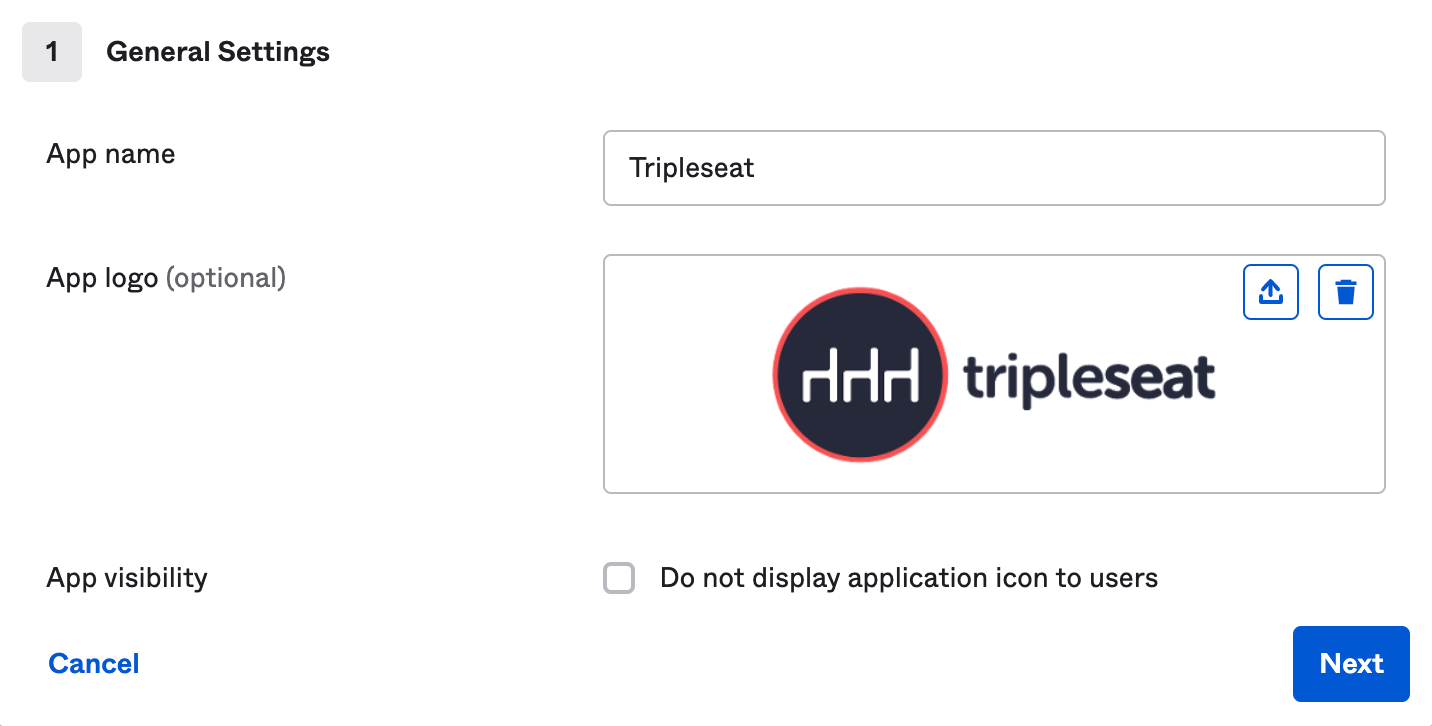
Configure SAML - This is where the information found in Settings -> Preferences -> User Authorization within the Tripleseat Platform will come in handy!
Section “A - SAML Settings” - consists of the following fields and their Tripleseat analogs where applicable:
“Single sign-on URL” -> Tripleseat Analog: SAML Assertion Consumer Service URL or “ACS URL”
“Audience URI (SP Entity ID)” -> Tripleseat Analog: “Entity ID”
“Default RelayState” -> *In most scenarios, Okta defaults to this field remaining blank*
“Name ID format” -> *Okta recommends leaving this field as “Unspecified” unless the “App” itself explicitly requires a specific format. Tripleseat does not require a specific format*
“Application Username” -> *Okta defaults to ‘Okta username’ as this field dictates the default value for the application username, which is what is sent over within the assertion’s subject statement*
“Update application username on” -> *Okta defaults to ‘Create and update’*
*The remaining fields within Section A are either Advanced Settings or Optional and are not mission-critical for getting SAML set up. These fields should be reviewed by an IT Team/Department on your end to determine if they are necessary to your company-specific standards.*
Section “B - Preview the SAML assertion generated from the information above” - allows you to preview the SAML in XML format to verify the information inputted above.
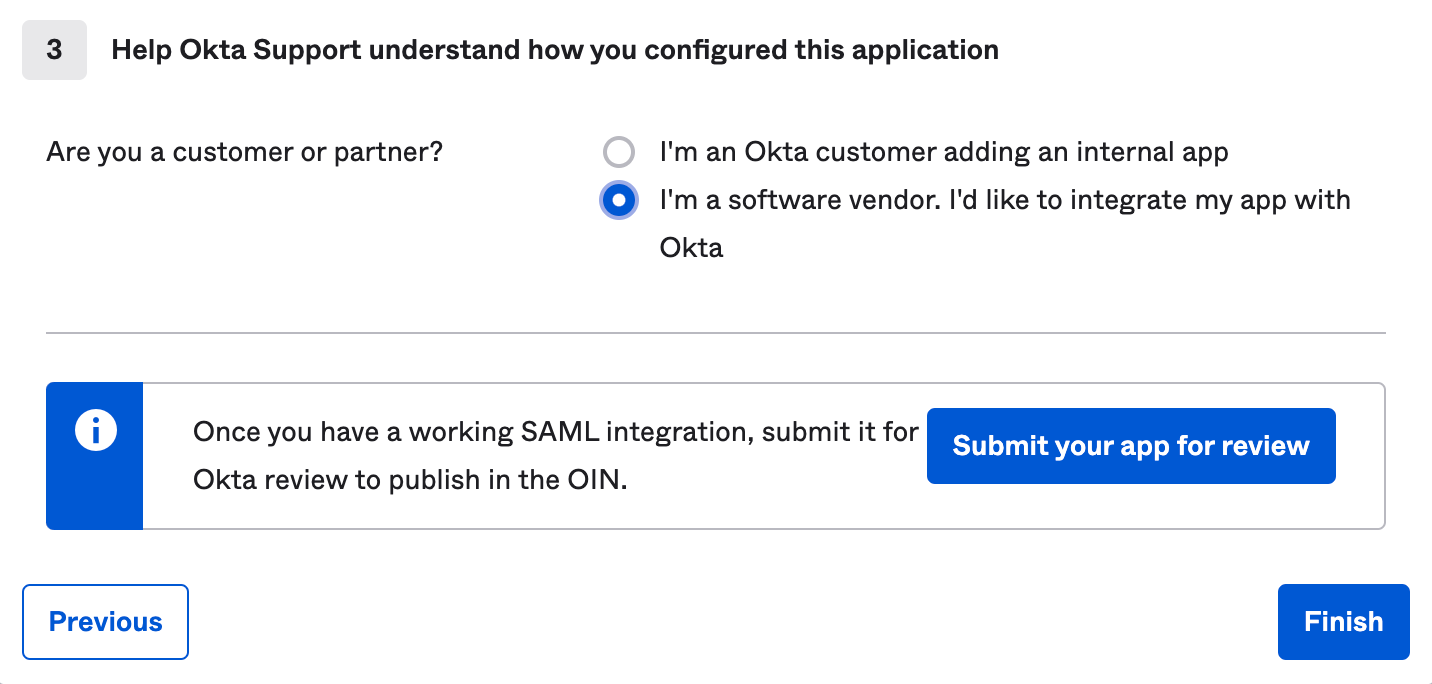
Feedback - This step in the process is prompted by Okta Support to determine if this is an Internal App of an Integration. They provide the following prompt:
“This form provides Okta Support with useful background information about your app. Thank you for your help—we appreciate it.”
As this is not an internal application, you will want to select “Software Vendor,” which indicates the integration between Tripleseat <>Okta.
Below is a visual for mapping the remaining fields within Tripleseat with the information provided by Okta:
Issuer URL (Entity ID)
SAML 2.0 Endpoint URL
IDP Certificate
*Pro-Tip: Ticking the “Allow IDP Initiated Logins” checkbox within Tripleseat will allow your Users to log into their Okta, where they can select the Tripleseat App from their dashboard to be logged in to Tripleseat directly.*