
If you are looking to link a file from your library into the text of a Discussion Email Template or another textbox within Tripleseat, follow these steps!
Start by going to Settings > File Library. Click on the downward arrow to the right of the image or file you'd like to link. That will open in another tab, and you can copy the URL from there. It should look like this:
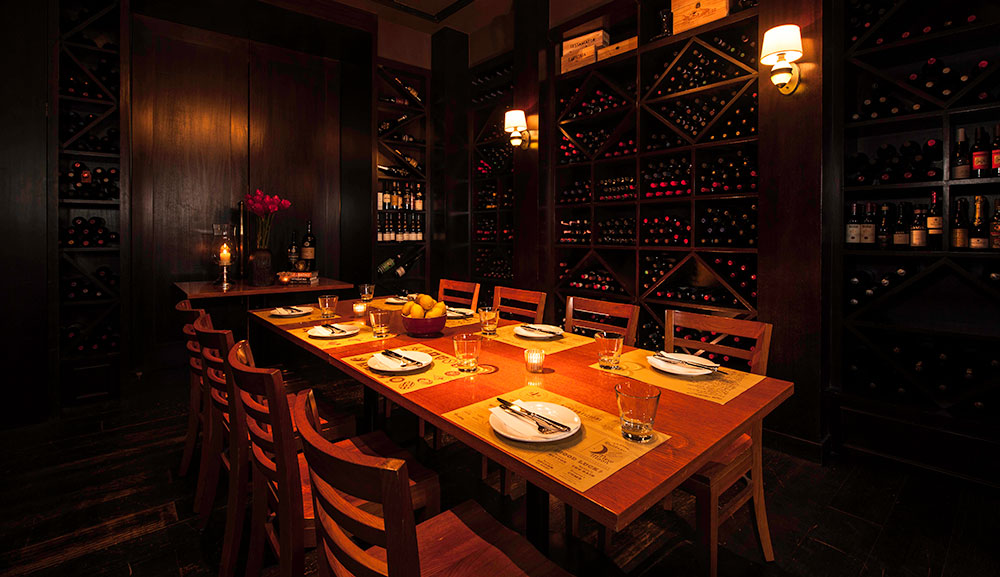
https://s3.amazonaws.com/ts-prod-assets.tripleseat.com/assets/000/771/634/dining_room_b2.jpg?X-Amz-Algorithm=AWS4-HMAC-SHA256&X-Amz-Credential=AKIAIEQY7POSDOFQVXHQ%2F20211217%2Fus-east-1%2Fs3%2Faws4_request&X-Amz-Date=20211217T195655Z&X-Amz-Expires=60&X-Amz-SignedHeaders=host&X-Amz-Signature=e43a63ebf0bfb28a8a2dcef80c4ac68476362460e337097c21e33c999f24986c
There will be a question mark in that URL that you will need to locate. Everything after the question mark is specific to you as a user, so any text after the question mark should be deleted. In this case, the URL should read like this:
https://s3.amazonaws.com/ts-prod-assets.tripleseat.com/assets/000/771/634/dining_room_b2.jpg?
Next, paste the link where you’d like it to live.
If you want to add it to a Discussion Email Template, go to Settings > Discussion Email Templates > Edit for the template you need to update. Highlight the text of that message where you wish to insert the link, and then use the chain icon to hyperlink the URL. Paste and save. Then, be sure to click Save at the bottom of the Discussion Email Template when you are done!