
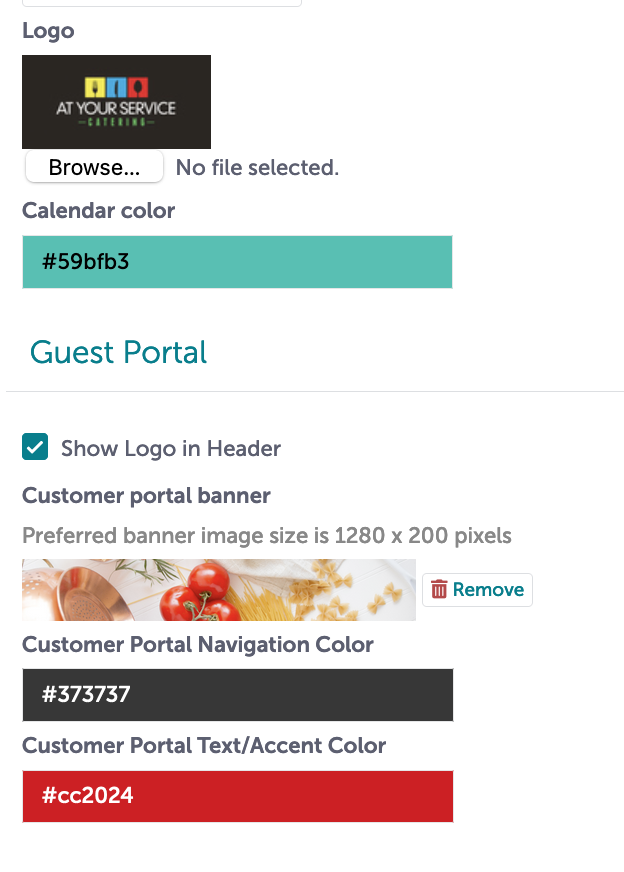
You can upload a logo and a banner image file for each of your locations in Tripleseat. These fields matter because as merge fields, they can flow automatically into the header of your documents, into the email signatures of your users, onto the Guest Portal, and onto the hosted version of the Tripleseat lead form. In sum, they contribute to your business' branding.
Image Files Specifications
- PNG and JPEG files accepted
- Banner image files should be 1280 x 200 pixels to display properly
- No parameters around the preferred logo size
To update either your logo or banner image, you should:
- Go to Settings > Locations > Edit Details.
- Scroll to the Logo field. Click Choose File to select a PNG or JPEG image from your computer.
- Scroll to the Banner field. Click Choose File to select the PNG or JPEG image from your computer.
- Click Update at the bottom to save.
Please keep in mind that the new versions of the logo and banner will appear anywhere that the merge field populates (in your docs, guest portal, and email signatures for example).
Pro Tip: Your Branding will populate onto the Hosted version of your Lead forms. However, should you prefer to customize the logo and banner photo that appears on on the form, you can do so in Settings > Lead Forms > Edit. For Example, if you create a customized lead form for a marketing campaign, you are able to override the Logo, Banner, and even the color scheme.
See below for our video explaining Logo and Banners: